NewTurn any image into a sign design.
Changelog

Changelog

Documenting our journey of creating a custom sign builder.

Filtered by:AI Sign Designer(14 updates)

Stay informed with updates every month

Or subscribe to ourRSS feed

Oct 28, 2026

2026.10

Let customers save their AI design and send you their details

The AI Sign Designer can take up to four minutes to make a design. Some customers leave before the design is ready. You can now add a Save design form to the AI Sign Designer. A card with your Save design form shows below the upload step while the design builds. The customer enters an email address and can then close the page. When the design is final, you get one email with the contact details and the design.
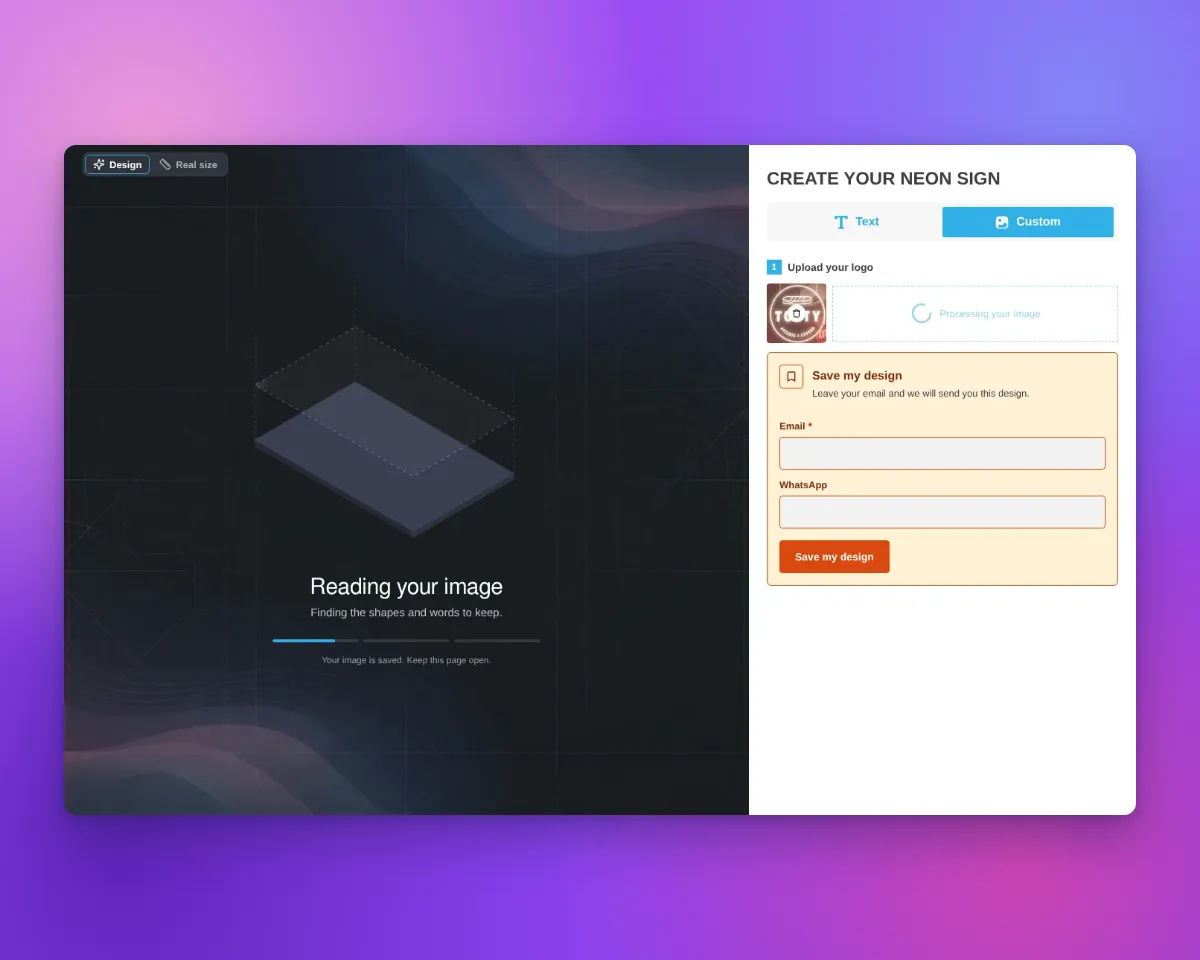
The build screen at stage 1, with a Save my design form that has Email and WhatsApp fields below the Upload your logo step in the sidebar

What’s Changed

  • Select a form to start. Open Core Setup > Custom Designs. In the Set up AI Sign Designer section, select a form in Save design form. The list shows the Custom designs forms that have a required Email field. You can use your fallback form if the list shows it. The default is None, so your customisers do not change until you select a form. Your plan must include custom design forms.
  • The card uses your form. The title of the card is the label of the form. The text below the title is the description of the form. File Upload fields do not show, because Sign Customiser attaches the customer’s image.
  • Customers can close the page. Sign Customiser links each request to the customer’s AI design. After the customer sends the form, the card shows Your design is saved. The note below the progress bar changes to Your design is saved. You can close this page. on all screen sizes.
  • Save the design when it is ready. On a desktop screen, the card stays below the upload step after the design is ready. On a phone with the step-by-step sidebar, the card moves to the top of the sidebar. The button below the price does not change, so customers can still buy. When the customer saves the design at this point, you also get the options, the price and the preview images. If your plan includes sharing and Share Sign Location is not Disabled, the email can have a link that opens the saved design.
  • Save a new version. After the design is ready, a customer who sent the form sees Save this version. This button opens the form again with the last email address. Each save makes a new request with the current design.
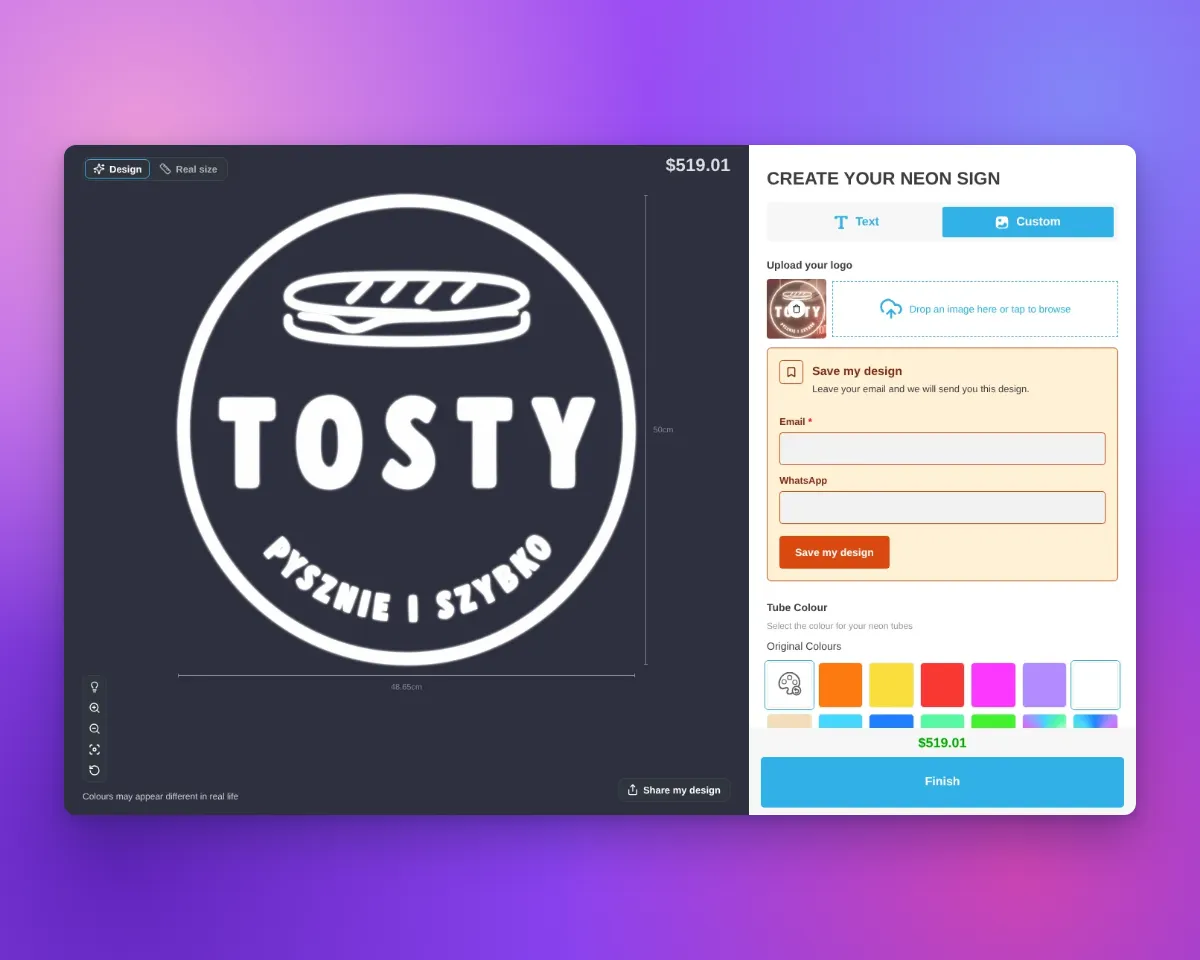
The customiser after the design is ready, with the empty Save my design form below the upload area and above the tube colours, the price and the Finish button
  • One email for each request. Sign Customiser sends the email to the Receiver Email of the form when the AI makes the design. It also sends the email when the design fails. If the design is not final after 10 minutes, Sign Customiser sends the email at that time. The email has the contact details, the status of the design, and links to the original upload, the generated SVG and the AI design file. A saved design uses no more AI credits.

  • See the design in Quotes. Each saved design is a request in Quotes. The request has an AI design card with the original artwork, the generated artwork and a View AI design file link.

  • Use your brand colours. Theme Colors has a new Save my design form group. Set the Background, Border, Heading Text, Body Text, Button Background and Button Text colours. An empty colour uses the matching theme colour. The live preview on Theme Colors and Custom Designs shows the card.

  • Translate the build screen. You can now change and translate this text:

    • The titles and messages of the build stages.
    • The build screen note.
    • The design review, no AI credits and too many uploads screens.

    Change the text in the Language card on Custom Designs. Translate it in Settings > Languages. The English text does not change until you change it.
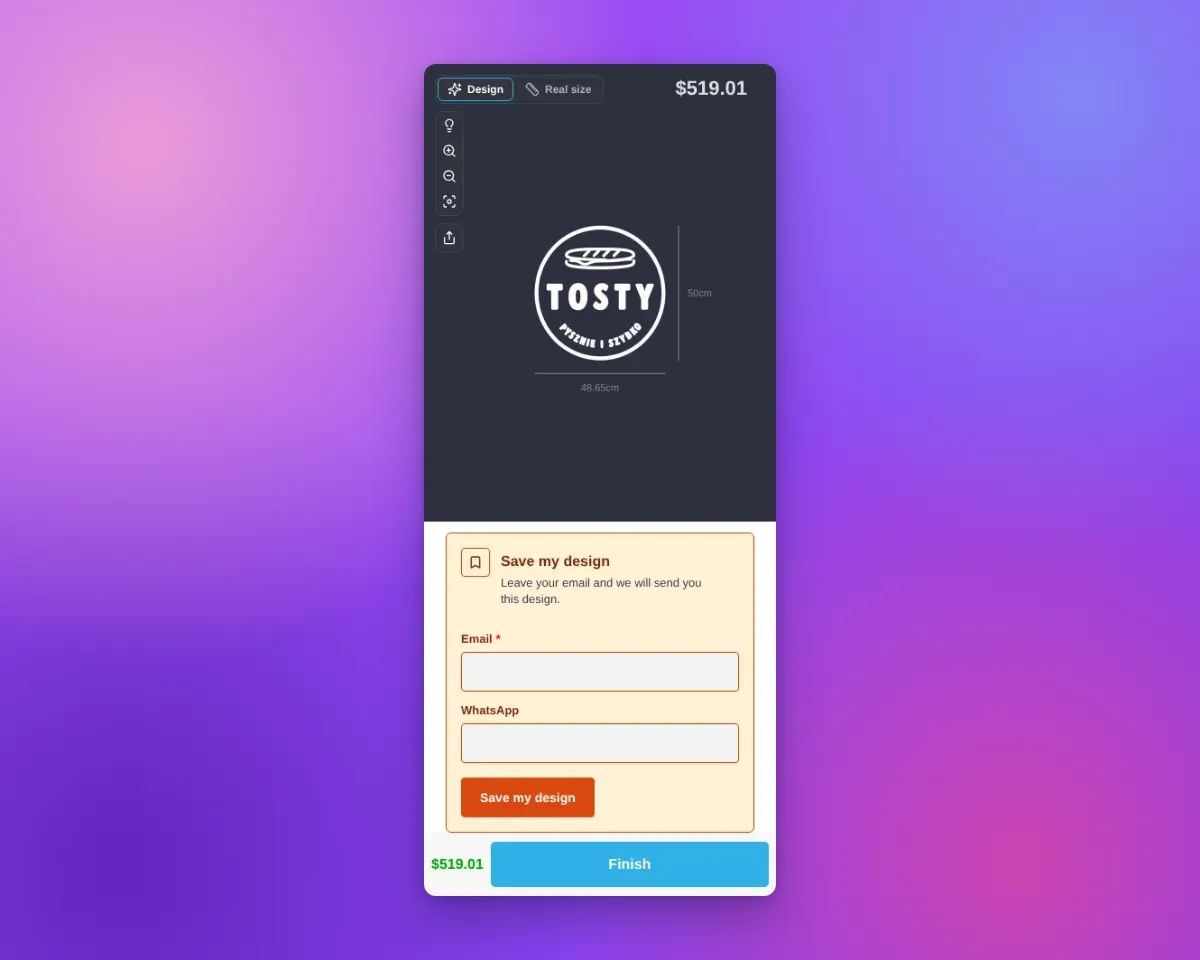
On a phone, the finished design with the Save my design form at the top of the sidebar, above the price and the Finish button

When the card does not show

Before the customer sends the form, the card does not show in these conditions:

  • No Save design form is selected.
  • The fallback form shows.
  • The AI cannot make the design, or the design needs a design review.
  • Your Store has no AI credits to start a design.
  • The customer opens the design from a share link.

After the customer sends the form, the card keeps its saved message for that design.

Get started

Read section 8, “Let customers save their design”, in Choose an AI Sign Designer setup.
Oct 24, 2026

2026.10

Unused AI Sign Designer Email Labels Removed

The old AI sign designer had an email form with the title “Taking longer than expected?”. An earlier release removed that form from the customer customiser. Its seven labels stayed in the merchant admin. Shoppers did not see these labels. Now Sign Customiser removes these labels. Shoppers see no change.

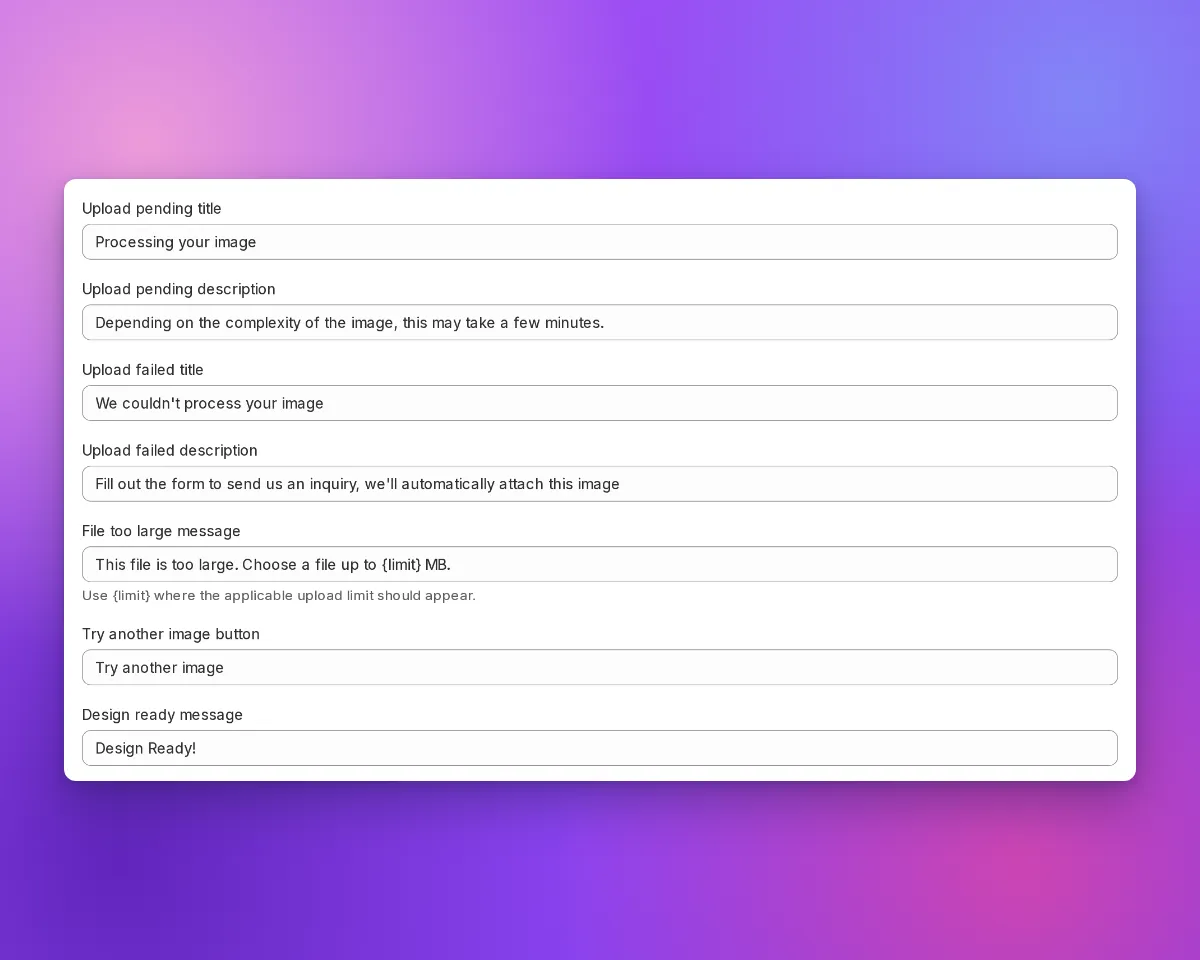
The Language section on the Custom Designs page: Try another image button is followed by Design ready message

What’s Changed

  • Fewer fields on the Custom Designs page. The Language section in Core Setup → Custom Designs no longer shows these fields: Manual form submitted title, Manual form submitted description, Manual form title, Manual form description, Name placeholder, Email placeholder and Submit button text.
  • Fewer entries in Languages. Settings → Languages no longer shows these labels. Sign Customiser removes their translations from each language.
  • Fewer label fields in the API and MCP. The customiser labels in the API, and in the get_customiser and update_customiser MCP tools, no longer include these fields:
    • logo_upload_form_submitted_title
    • logo_upload_form_submitted_description
    • logo_upload_form_title
    • logo_upload_form_description
    • logo_upload_form_name_placeholder
    • logo_upload_form_email_placeholder
    • logo_upload_form_submit_button

What to do

Most Stores do not need to do anything. If your API integration or AI agent sends one of these fields, remove that field from the request. If a request to change customiser labels includes one of these fields, the API now returns a 422 error.

AI Sign Designer Available Now on API and MCP

The AI sign designer now works through the Sign Customiser API and through AI agents. Send a PNG, JPEG or WebP image of 5 MB (5,242,880 bytes) or less. The AI sign designer makes a sign design and gives you the production files. A delivered design uses one credit. A design that fails uses no credit.

What’s Changed

  • Make a design with the API. Send an image and start a design job. Read the job until the design is ready. The API makes neon, channel letter and metal cut-out designs.
  • Get production files. Each design has an SVG file, an EPS file and an Illustrator-compatible PDF file. To get only the SVG file, ask for SVG only.
  • Share files with no login. Each ready file has a download link. The link needs no API key and no login. You can give it to a manufacturer.
  • Pay for delivered designs only. The AI sign designer holds one credit when a design starts. It uses the credit when the design is delivered. It releases the credit when the design fails.
  • Send a request again with no second charge. If you send the same request again with the same Idempotency-Key, you get the same job. You use no second credit.
  • Retry a failed conversion for free. If an EPS or PDF conversion fails, you can start it again. Each design has 3 free retries.
  • Use an AI agent. Seven new MCP tools let an agent check the credits of the Store, send your image, start a design and get the files. Claude Code, OpenAI Codex and ChatGPT can use them.
  • Confirm the credit first. Before an agent starts a design, it must confirm that the design uses one credit.

PNG files with a non-standard colour profile

Before this fix, the API and the MCP server could reject a valid PNG file that has a non-standard colour profile. Older Adobe exports often have this profile. The API and the MCP server now accept these files. They still reject a damaged file.

Get started

  1. Create an API key in Tools & Settings > API Tokens. Select the ai_sign_designs:read and ai_sign_designs:write scopes. A key that you made before with a fixed list of scopes does not have these scopes.
  2. Follow the AI sign designer guide.
  3. To use an AI agent, follow the connection guide. Approve View AI sign designs and Use the AI sign designer. If you connected the agent before, connect it again.

Sep 27, 2026

2026.9

AI neon designs now show as lit tubes

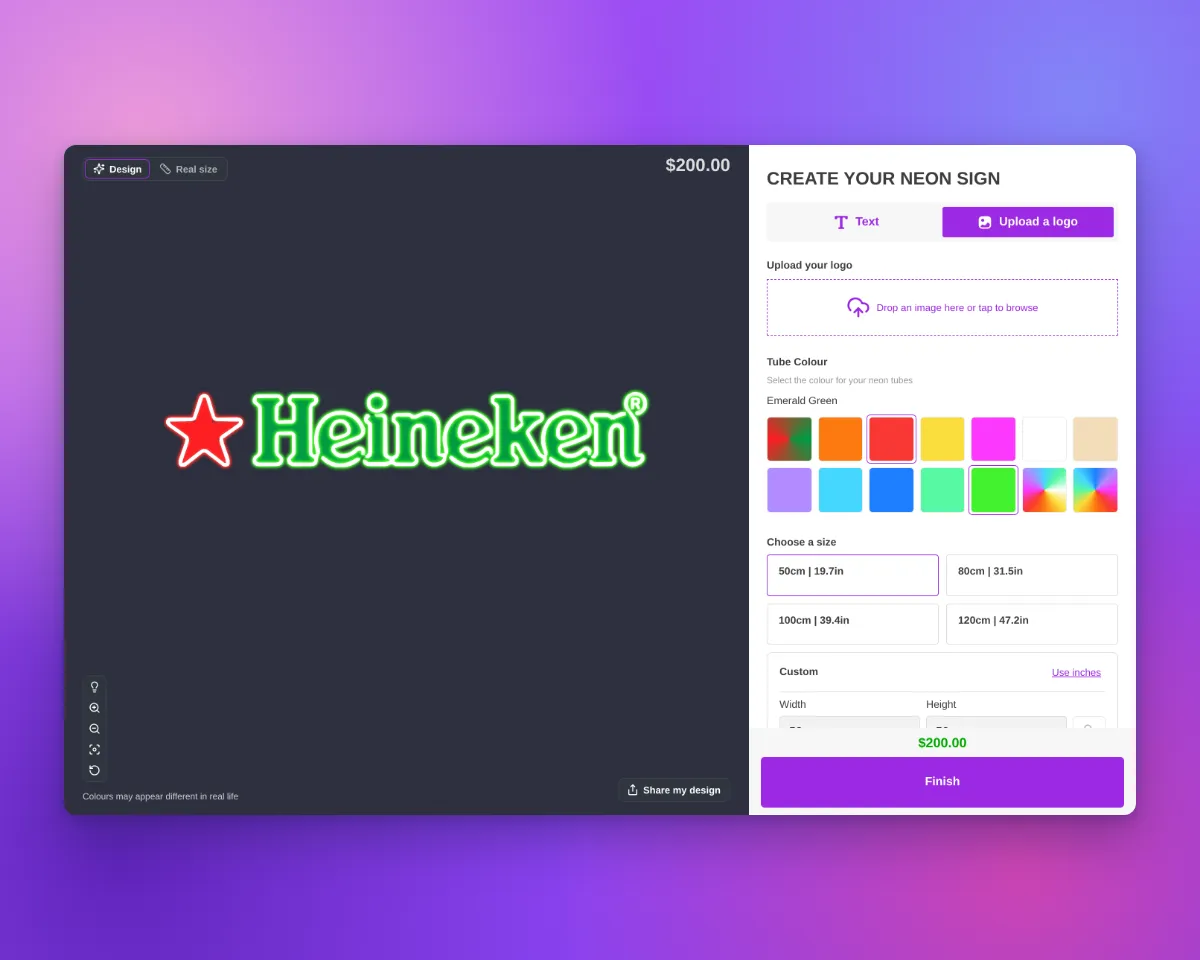
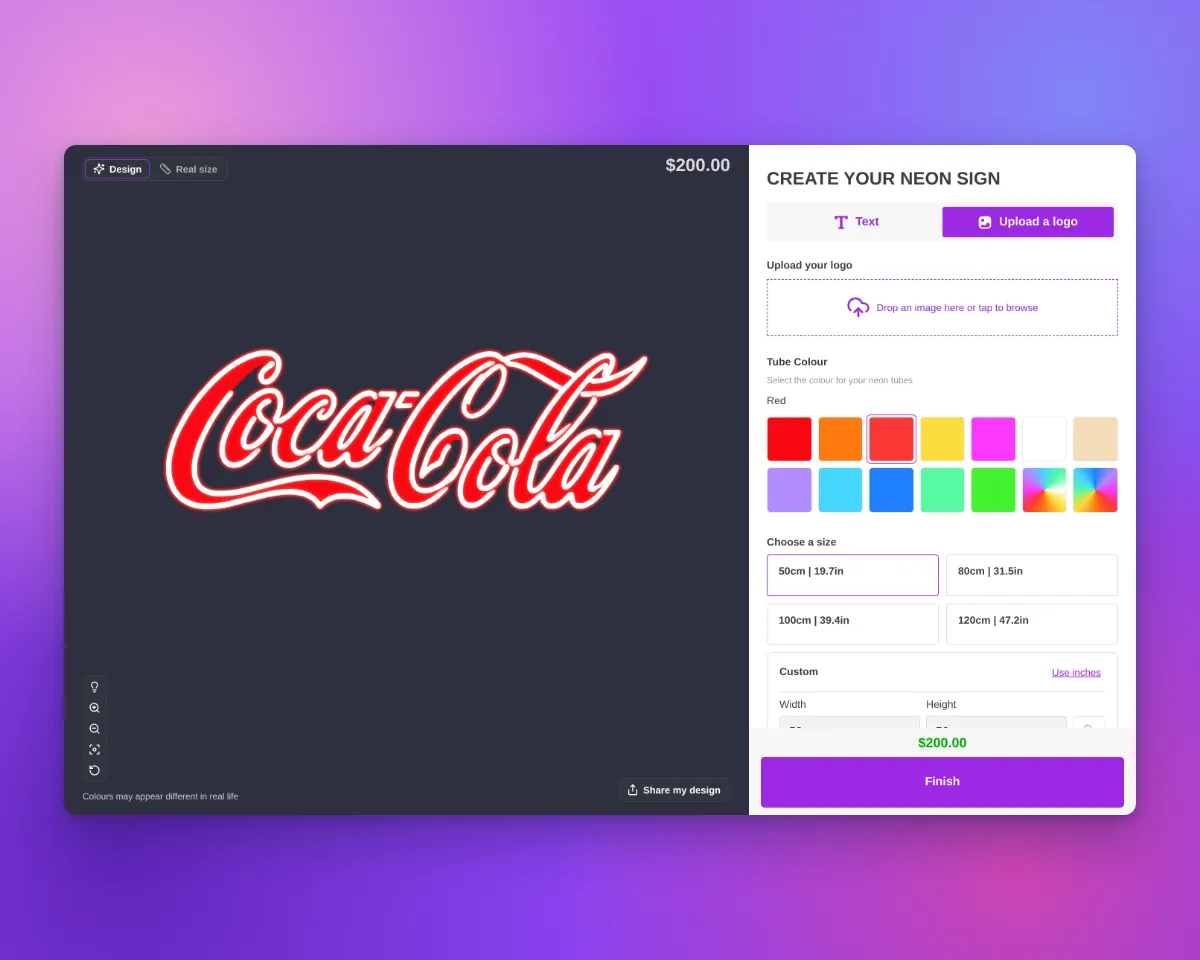
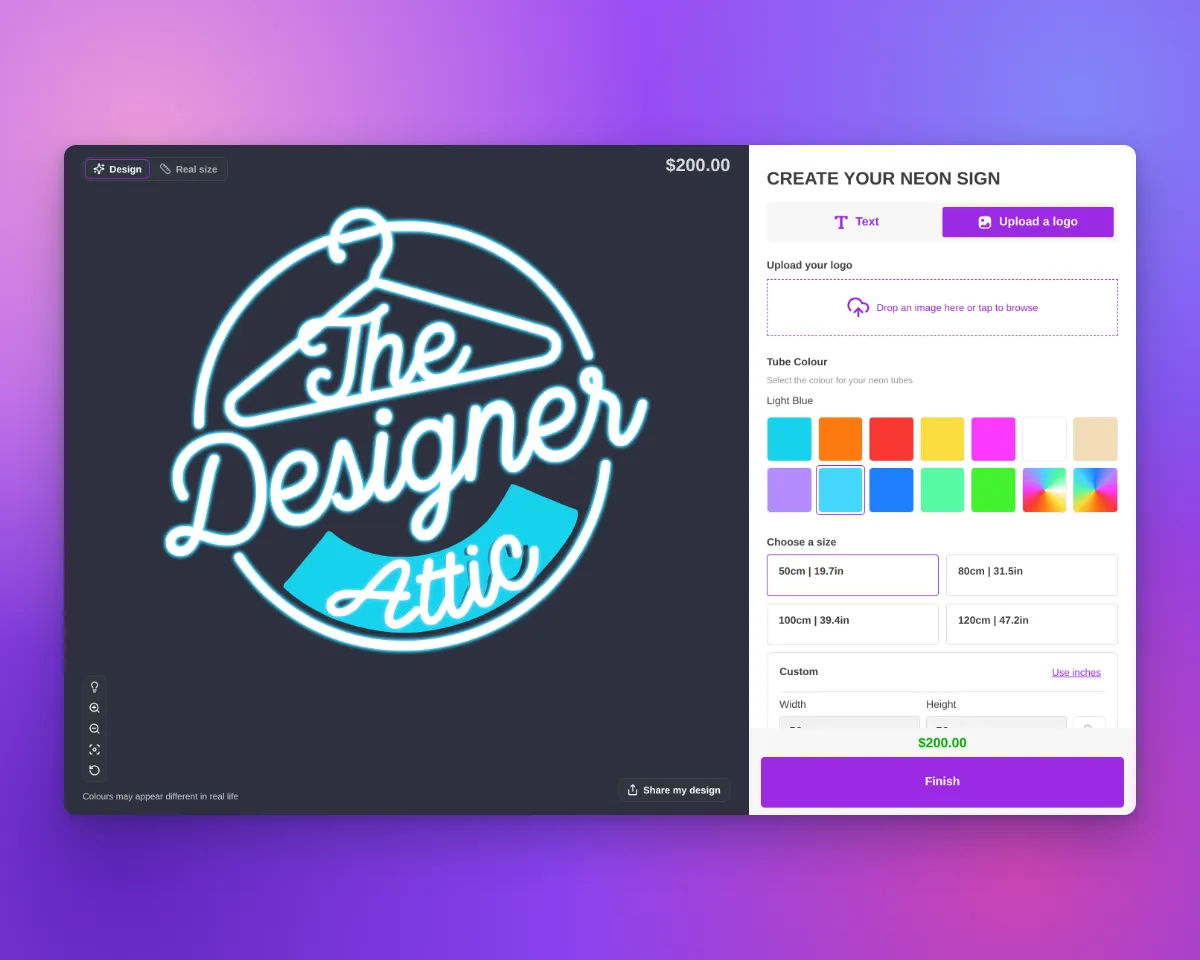
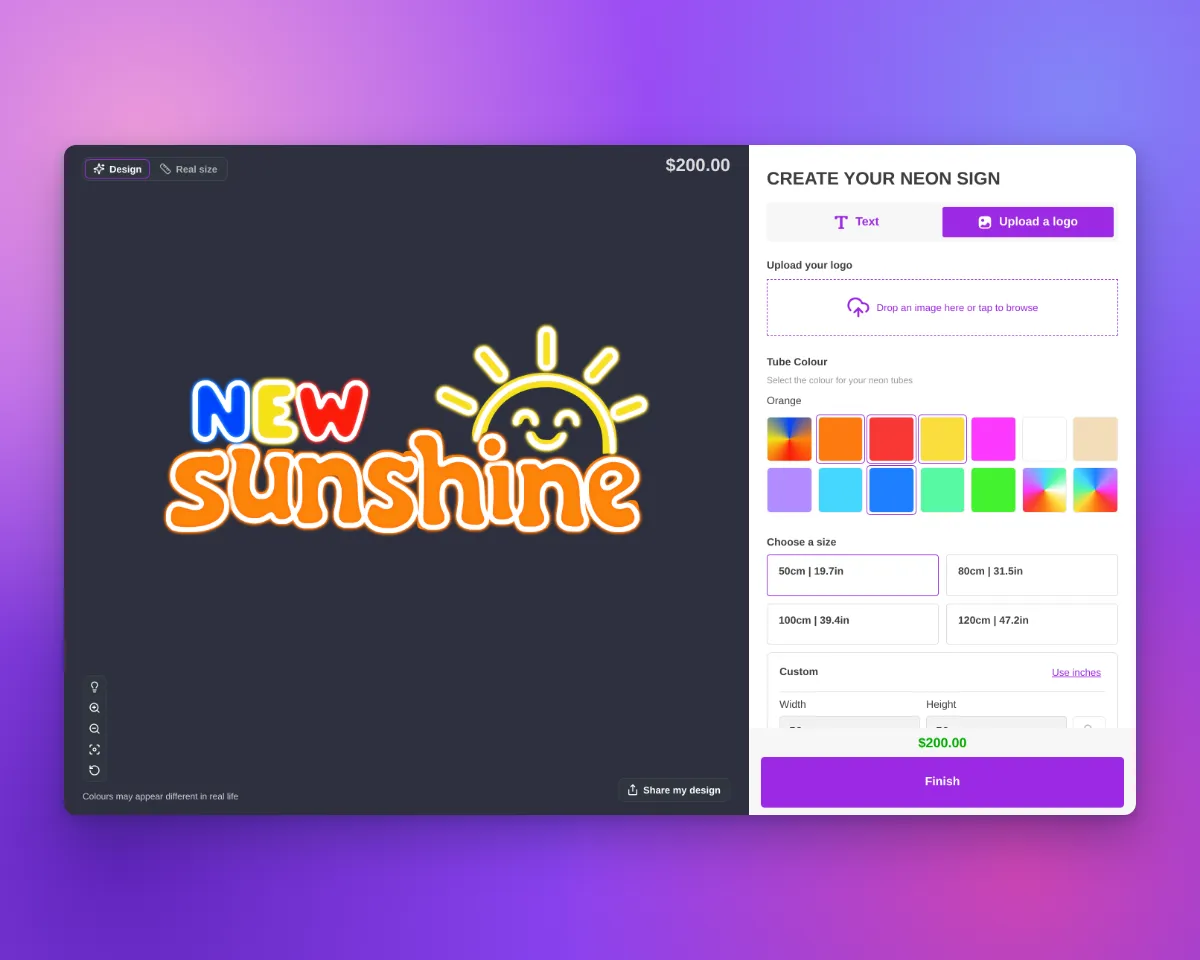
When AI Sign Designer V2 draws a neon design as neon line work, the customiser now shows the line work as lit neon tubes. The tubes have the same glow as neon text.

Update, 1 October 2026:From 1 October 2026, AI Sign Designer V2 does not add a UV print to new neon designs. The images on this page show designs from before this change. They have a UV print under the tubes. Those designs keep their UV print. When the UV print shows, the order includes the UV print file. Your manual UV print options do not change.

Customer customiser showing the Heineken logo as lit neon tubes with a green glow over green UV-printed letters and a red star, with no backboardCustomer customiser showing the Coca-Cola logo as lit neon tubes with a red glow over red UV-printed script, with no backboard

What’s Changed

  • Lit neon tubesThe tubes use the Glow Effect setting of your tube part, as neon text does. When the lights are off, the tubes show the jacket colour.
  • Tubes aligned to the artworkWhen it gives a better fit, Sign Customiser moves the tube drawing to align it with the flat artwork.
  • Uploaded logosShapes in uploaded neon logos no longer show an extra thin line on their edge. The trim outline does not change. Filled shapes now glow from their fill, as neon text does. When the tubes are white with a coloured glow, the glow is also smaller. Uploaded logos with Flow tube colours look the same as before.
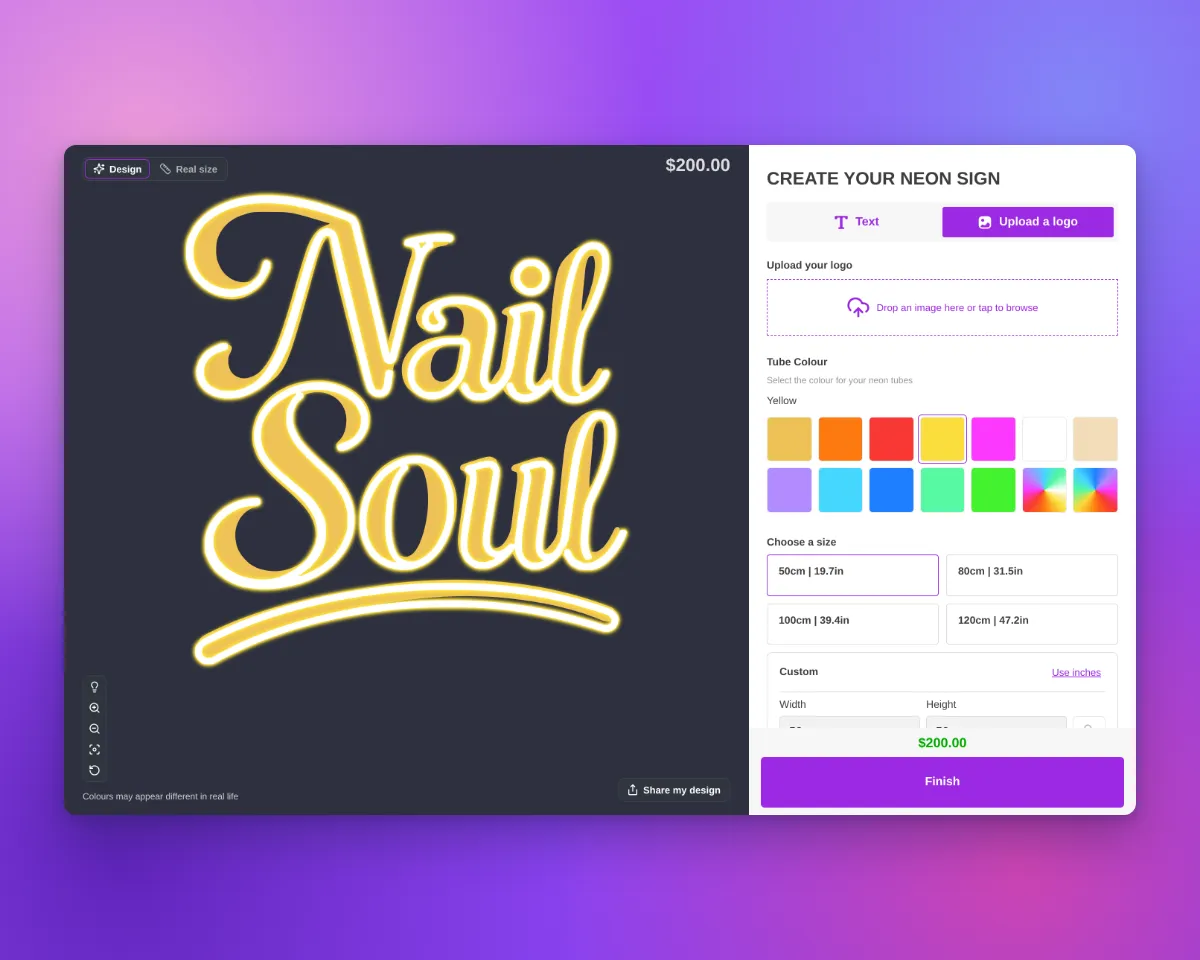
Customer customiser showing The Designer Attic logo as lit neon tubes with a light blue glow over a light blue UV-printed band, with no backboardCustomer customiser showing the New Sunshine logo as lit neon tubes with blue, yellow, red and orange glows over matching UV-printed letters, with no backboardCustomer customiser showing the Nail Soul script logo as lit neon tubes with a yellow glow over gold UV-printed letters, with no backboard

Designs that have a UV print

Before 1 October 2026, AI Sign Designer V2 added a UV print to some new neon designs. For a UV print, the selected product type had an active UV part with at least one UV colour or a custom image. The flat colours of the design then showed as a UV print under the tubes. These designs keep their UV print:

  • Follows the product typeIf the customer selects a product type without UV print, the customiser hides the UV print. If they select a product type with UV print, the UV print shows again.
  • File with the orderWhen the design in the cart shows a UV print, Sign Customiser saves a UV print file with the product. The file has the UV colours of the final design and uses the same frame as the sign SVG.
  • Order emailThe default neon order email has a UV print artwork: line with a link to the file. If your customiser uses its own order email template, add the uvPrintLink variable to it.
  • Product pageIn the Design Files section of the product, the file shows as UV print artwork.
  • Hidden order propertyThe order line item has a hidden _UV print artwork property with the link to the file.
  • AI Design FilesA delivered design with a UV print has a Download UV print artwork button. This file has the colours from the AI, not the colours from the customer.
  • Sign SVGIf your customiser makes an SVG image of the sign, that file keeps the UV print and the tubes in separate groups. The tubes show in their tube colours.

Sep 25, 2026

2026.9

AI Sign Designer V2 shows customers each step as it makes their design

When a customer uploads an image to AI Sign Designer V2, they see an animated drawing of a sign while the design is made. The layers of the sign move into position step by step. A short message shows what occurs at each step. If the design fails, the customer can try again or upload a different image. You can also let the customer send the image to your team with your fallback form.

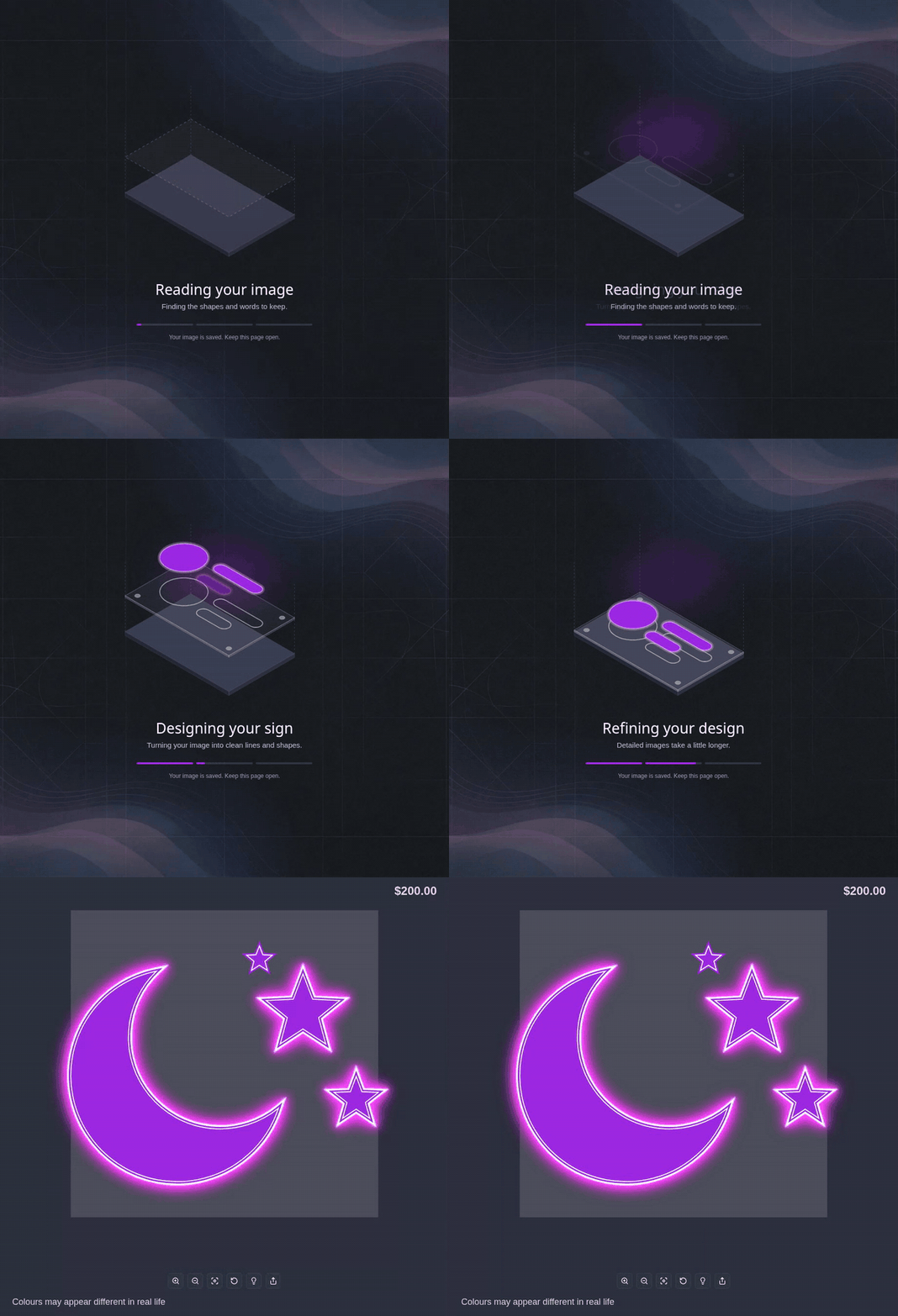
AI Sign Designer V2 loader: the sign drawing moves from Reading your image to Designing your sign, where three parts appear one after another, then to Refining your design and Putting it all together, and then the finished neon design opens

What customers see

  • Reading your imageA base panel and a dashed outline of the design move slowly up and down.
  • Designing your signThe three parts of the design appear one after another, in approximately four seconds.
  • Refining your designIf the design takes more than one minute, the message shows that detailed images take more time.
  • Putting it all togetherThe layers move together and become bright. Then the customiser shows the finished design.

On desktop, the message Your image is saved. Keep this page open. shows below the progress bar while the design is made.

To change the Reading your image message and the messages that show when a design fails, open Custom Designs. In the Language section, use Upload pending title, Upload pending description, Upload failed title, Upload failed description, Failed upload text on desktop, Failed upload text on mobile, Refused design title, Refused design message, Form request button and Try another image button. You cannot change the messages for the other steps.

When a design fails

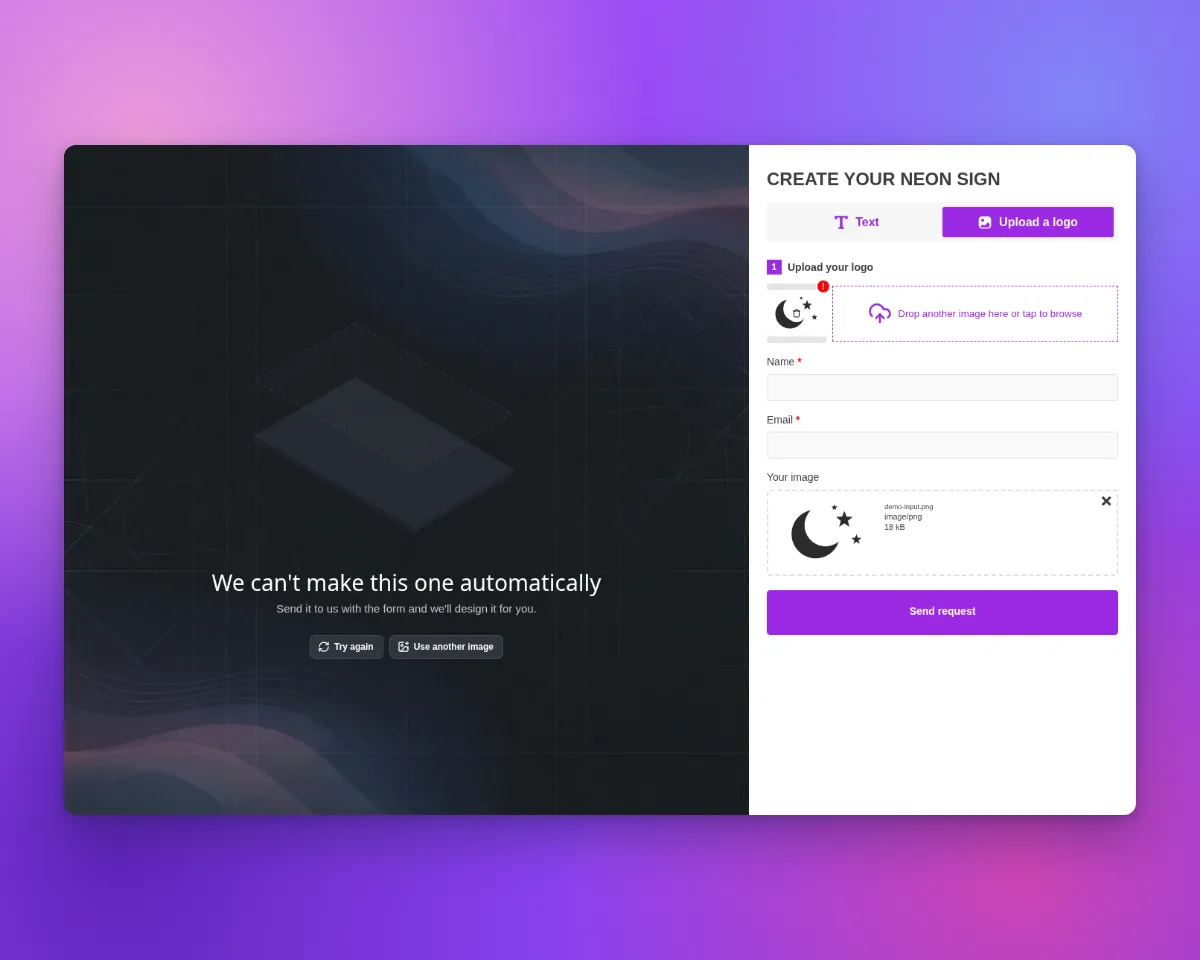
Refused design screen with the message We can't make this one automatically, and the fallback form open with the customer's original image attached
  • A design that cannot be madeSometimes our checks refuse a design. Then the customer sees We can’t make this one automatically, and your Fallback Form opens with the customer’s original image attached. The customer can also select Try again or Use another image.
  • Other failuresAfter a different failure, such as an error or a time-out, the customer can select Try again to use the same image again. They can select Use another image to upload a different image. They can also select Submit as a form request to open your fallback form with the image attached.
  • Your fallback formThese form options need a Fallback Form that has a File Upload field. Select it in Custom Designs. The setting Send designs that cannot be made automatically to the fallback form is on by default for all customisers. For more information, see Refused AI designs now go to your fallback form.
  • No credit usedA failed design does not use an AI credit. AI Sign Designer V2 uses one AI credit only when it delivers a design.

Sep 17, 2026

2026.9

Lower prices for AI purchased credits

AI purchased-credit packs now cost USD 10, USD 25, or USD 75. You still receive 40, 120, or 400 credits.

What’s changed

  • Lower pack prices. The 40-credit pack costs USD 10, the 120-credit pack costs USD 25, and the 400-credit pack costs USD 75.
  • The same credit amounts. Each pack includes the same number of AI purchased credits as before.

Sep 12, 2026

2026.9

Monthly AI plan credits and larger credit packs

Current ladder plans now include AI plan credits each month. Your Store can use the AI Sign Designer before you buy extra credits. AI purchased credit packs also contain twice as many credits as before.

What’s Changed

  • Get monthly AI plan credits. Seed includes 15 credits. Growth plans include 25, 50, 75, 100, or 125. Ultimate includes 150.
  • Keep the same yearly allowance. A yearly plan receives the same monthly allowance as its monthly equivalent.
  • See when credits reset. AI plan credits reset on your monthly billing anniversary and do not roll over.
  • Keep AI purchased credits. Sign Customiser uses AI plan credits first. AI purchased credits never expire.
  • Get twice the credits per pack. Buy 40 AI purchased credits for $12, 120 for $30, or 400 for $90.
  • See each balance. The AI Credits card shows both balances and your next AI plan credit reset date.

Jun 19, 2026

2026.6

Upload PDF files to the AI Sign Designer

The AI Sign Designer now accepts PDF uploads, making it even easier for your customers to turn artwork they already have into a custom sign. PDFs are one of the most common formats designers and businesses use for logos and brand artwork, so this removes a frustrating extra step for customers who previously had to convert their files before uploading.

When a customer uploads a PDF, the AI Sign Designer processes it automatically, just like a photo or image, producing a sign-ready preview and the production files you need to fulfil the order.

What’s Changed

  • PDF uploads now supportedAlongside JPG, PNG, SVG and photos, customers can now upload PDF artwork directly into the AI Sign Designer
  • Automatic conversionUploaded PDFs are turned into a sign-ready design with no extra effort from your customer
  • Larger files welcomePDF artwork can be up to 25MB, comfortably covering the high-resolution files designers typically supply
  • Clear feedback on problem filesUnreadable or password-protected PDFs are handled gracefully, so customers get a helpful message instead of a broken upload

Metal cut-out signs

Sign Customiser now ships a dedicated Metal Cut-Out Signs product type. Customers pick a panel shape and type or upload their design, and the sign is rendered as a clean negative-space cut-out from a metal panel — ready to send straight to the laser cutter.

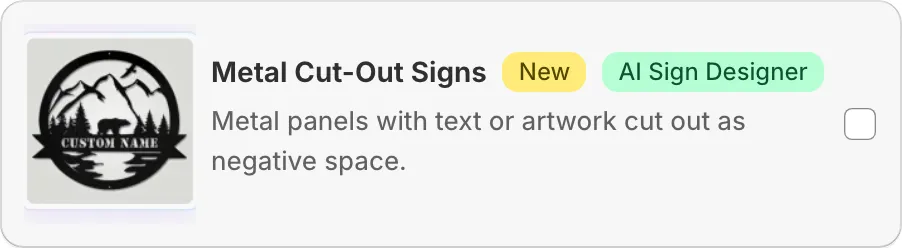
New Metal Cut-Out Signs product card in the customiser create flow, with cut-out bear and mountain artwork

What’s Changed

  • New Metal Cut-Out Signs product typePick “Metal Cut-Out Signs” in the customiser create flow alongside neon, channel letters, lightbox, wood, and address numbers. Onboarding seeds a complete starter customiser with panels, panel colours, mountings, and an outdoor finishing extra so the new product is ready to sell as soon as it’s created
  • Six pre-built panel shapesRectangle, rounded rectangle, circle, oval, classic plaque, and banner panels are included out of the box, each with sensible text padding so the cut-out design always sits comfortably inside the panel edge
  • AI Sign Designer supportCustomers can upload a logo or describe the sign they want and the AI Sign Designer generates clean stencil-style artwork shaped to the selected panel, ready to be cut from metal in a single piece
  • Panel colour and material libraryA starter library of panel finishes — including raw steel — applies across the visualiser so shoppers see their cut-out design on the actual material they’ll receive
  • Mounting and finishing optionsWall standoffs and pre-cut hanging holes ship as mounting choices, with an optional outdoor clear coat extra for signs that need extra protection against the weather
  • Frame fit pricing built inCut-out signs use area-based frame fit pricing, so quotes scale naturally with panel size using the same pricing model already powering backboards and lightbox signs

A quality leap for AI-generated neon sign designs

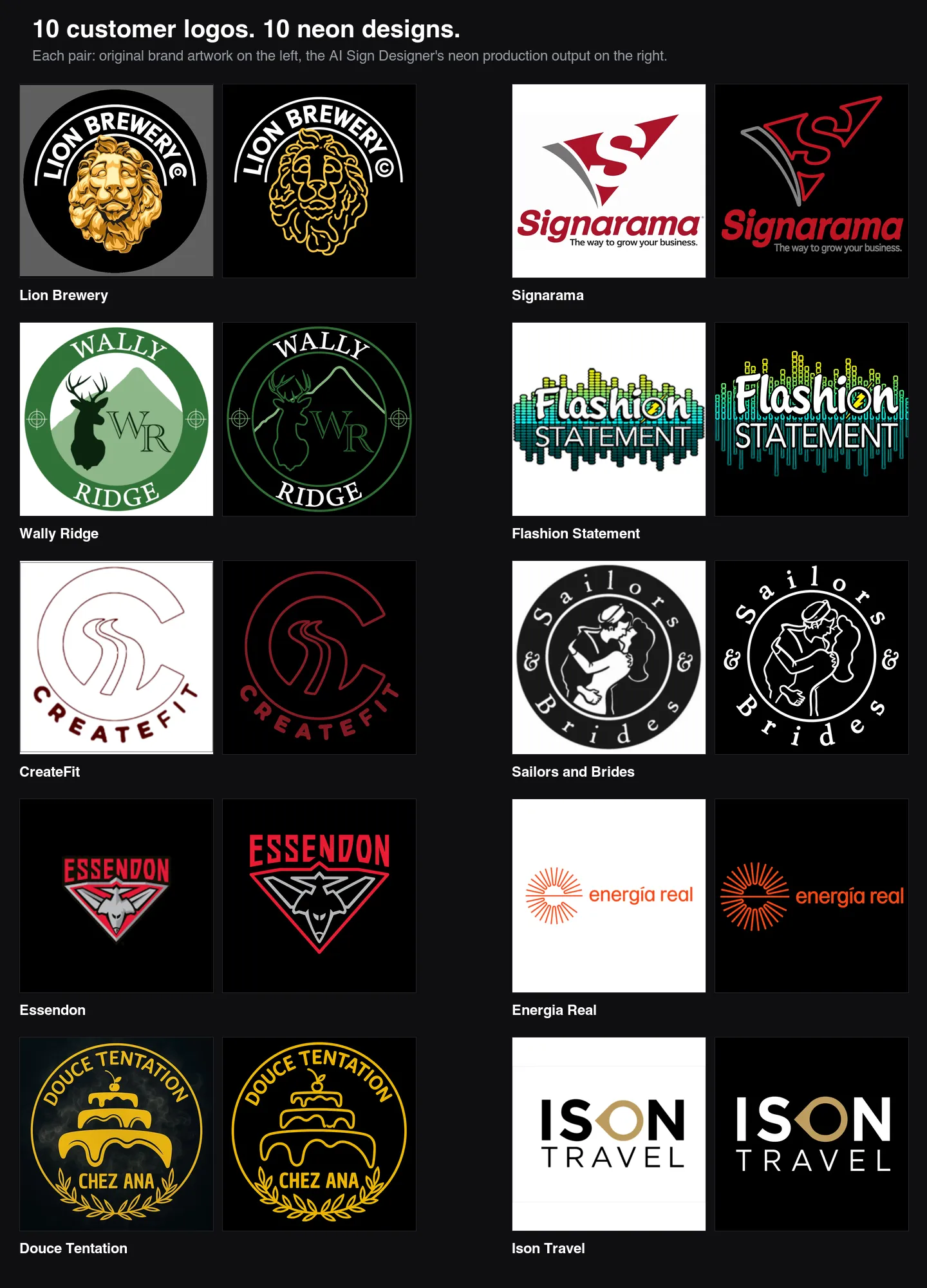
The AI Sign Designer has taken a significant step forward at converting customer-supplied logos into neon production artwork. When shoppers upload a brand logo and ask for a neon sign, the output now looks like a clean tube layout your shop could quote and build, with the original wordmark, colours, and proportions intact.

Grid of ten customer logo uploads paired with their AI-generated neon production designs, including Lion Brewery, Signarama, Wally Ridge, Flashion Statement, CreateFit, Sailors and Brides, Essendon, Energia Real, Douce Tentation, and Ison Travel — each output preserves the source wordmark, brand colours, and layout while rebuilding the graphics as flat tube paths

What’s Changed

  • Brand typography is now preserved exactlyWordmarks are traced from the original glyphs, so the source font weight, letter spacing, terminals, and curved baselines come through instead of being replaced by a generic neon script
  • Source colours map to tube coloursBrand reds, greens, blues, and other colours from the customer’s logo carry through to the neon tubes rather than collapsing to a single white tube
  • Backboards and filled badges are stripped outSolid discs, shields, dark colour fields, and panel backgrounds behind a logo are removed automatically, leaving only the foreground tubes and lettering a sign shop would actually fabricate
  • Flat production artwork instead of a glowing previewOutputs are now unlit, hard-edged, vector-style tube proofs with no halos, bloom, or photographic glow effects, so what you see is what you’d quote
  • Taglines and small lettering surviveThin, light, or widely spaced text is no longer fattened or regularised; small straplines like “The way to grow your business” remain readable and on the right baseline
  • Cleaner separation of text and graphicsLetters stay solid filled, while icons, animals, and decorative shapes are rebuilt as sparse tube paths with negative space between them — matching how a real neon sign is built
  • More consistent results from the same uploadNeon prompts now run with tighter generation settings, so re-running the same logo produces noticeably less variation between attempts

Open original

Get started

Add Sign Customiserto your store today

Install now
36+ verified reviews

Login

Universal Sign In
  • WordPress
  • Wix
  • Etsy
  • Squarespace
  • Webflow

Or, if on Shopify, navigate to your store admin to login.