NewTurn any image into a sign design.
Changelog

Changelog

Documenting our journey of creating a custom sign builder.

Filtered by:feature(185 updates)Page 10 of 19

Stay informed with updates every month

Or subscribe to ourRSS feed

Jan 6, 2026

2026.1

Enter measurements in inches and pounds

You can select centimetres or inches for dimensions in the Sign Customiser merchant admin. You can select kilograms or pounds for weights.

How to enable

Follow the steps in the admin measurement units guide.

Storage update (September 2026)

Your Store unit settings control the units you use in the merchant admin. The customer customiser has separate unit settings.

This update adds inch and pound values beside metric values in existing settings. The merchant admin still converts new size entries to centimetres when you save them. Some older settings show a value converted from the metric figure first saved. Read the inch and pound figures update for details.

Dec 29, 2025

2025.12

Rotation data now included in order details

Sign Customiser now includes rotation information directly in your order details. When customers rotate individual letters or elements in their custom sign designs, those rotation angles are captured and displayed alongside other manufacturing specifications, eliminating guesswork during production.

What’s Changed

  • Rotation angles in product descriptionsWhen a sign element has been rotated, the exact degree of rotation is now displayed in the order details alongside dimensions and other specifications
  • Customisable rotation labelMerchants can customise the “Rotation” label text through the Labels settings to match their preferred terminology
  • Accurate manufacturing dataRotation values are shown with degree precision, ensuring your production team has the exact orientation for each element

Dec 24, 2025

2025.12

Enhanced visualiser controls and navigation

Sign Customiser’s visualiser now offers more intuitive ways to explore and perfect your sign designs. Whether you’re positioning your sign against a background image or getting a closer look at fine details, these new controls put you in the driver’s seat.

What’s Changed

  • Pan and zoom supportDrag the visualiser stage around and zoom in or out to get the perfect view of your design. This is particularly useful when positioning signs against background images for realistic previews.
  • Unified control barThe light, background, and share controls are now consolidated into a single convenient control bar. Merchants can enable this by updating their Control Location settings in the admin.
  • Improved custom shape backboard interactionCustom shape backboards can now be dragged within their defined content area without accidentally resizing the backboard itself, giving you more precise control over sign placement.

Dec 19, 2025

2025.12

Enhanced SVG colour controls and gradient preview icons

Sign Customiser now offers more powerful controls for SVG logo customisation. When your customers upload SVG designs, they can now remove the face colour entirely to create outline-only effects, and the system intelligently matches the original SVG colours to your predefined colour selections.

We’ve also improved the visual experience when using RGB or Flow colour options - the sidebar icons now display a striking diagonal gradient showing all the available colours, rather than appearing blank.

What’s Changed

  • SVG face colour removalA new “none” option lets customers remove the face colour from individual SVG shapes or all shapes at once, creating clean outline-only designs
  • Intelligent SVG colour matchingWhen an SVG is uploaded, its colours are automatically matched to the closest predefined face, tube, and halo colours using advanced colour distance calculations
  • RGB/Flow gradient iconsColour icons in the sidebar now display a diagonal gradient preview when RGB or Flow multicolour options are selected
  • Fixed tab switching stabilityResolved an issue where position coordinates could inadvertently update when switching between text editor and SVG editor tabs
  • Improved SVG style detectionSVG elements now correctly detect inherited colours from parent elements and CSS classes, ensuring accurate colour representation

Dec 17, 2025

2025.12

Disable Text Editor to Show Only AI Sign Designer or Form

Sign Customiser now gives store owners full control over which design interfaces are available to customers. With the new “Editor Modes” setting, you can disable the text editor entirely, leaving only the AI sign designer or embedded form option visible to your customers.

This is ideal for stores that want to streamline the customer experience by directing all orders through a single, focused workflow—whether that’s leveraging the AI sign designer for custom graphics or collecting detailed requirements through an embedded form.

What’s Changed

  • New Editor Modes admin pageA dedicated settings page under each customiser allows you to enable or disable the text editor
  • Automatic interface switchingWhen the text editor is disabled, customers are automatically shown the AI sign designer or custom design form without any tab navigation
  • Cleaner customer experienceThe tab switcher is hidden when only one design mode is available, creating a more streamlined interface
  • Smart validationThe text editor can only be disabled when a custom design option (AI designer, form, or link) is already configured

Dec 17, 2025

2025.12

AI Sign Design Multicolour Support

Sign Customiser now intelligently preserves the original colours from AI-generated sign designs, giving your customers more creative control. When a multicolour design is uploaded, each shape retains its original fill and stroke colours rather than being converted to a single colour.

We’ve also added a powerful new reset button that works across all customiser types, allowing customers to instantly restore any element back to its default state.

What’s Changed

  • AI design multicolour preservationWhen customers upload an AI-generated design, the original fill and stroke colours from each shape are automatically detected and applied to the sign preview
  • One-click reset for any elementA new reset button restores the selected word or shape to its default state, resetting position, rotation, scale, colours, and font all at once. This works across neon signs, channel letter signs, and AI-generated designs
  • Individual shape colour editingEach shape in a multicolour design can still be customised independently, giving customers flexibility to adjust specific elements while keeping others as designed
  • Improved free transform controlsThe drag, scale, and rotate settings have clearer descriptions to help merchants understand exactly what each option allows customers to do
  • Better layer controlsLayer ordering buttons now include helpful tooltips and have been repositioned for improved usability

Dec 1, 2025

2025.12

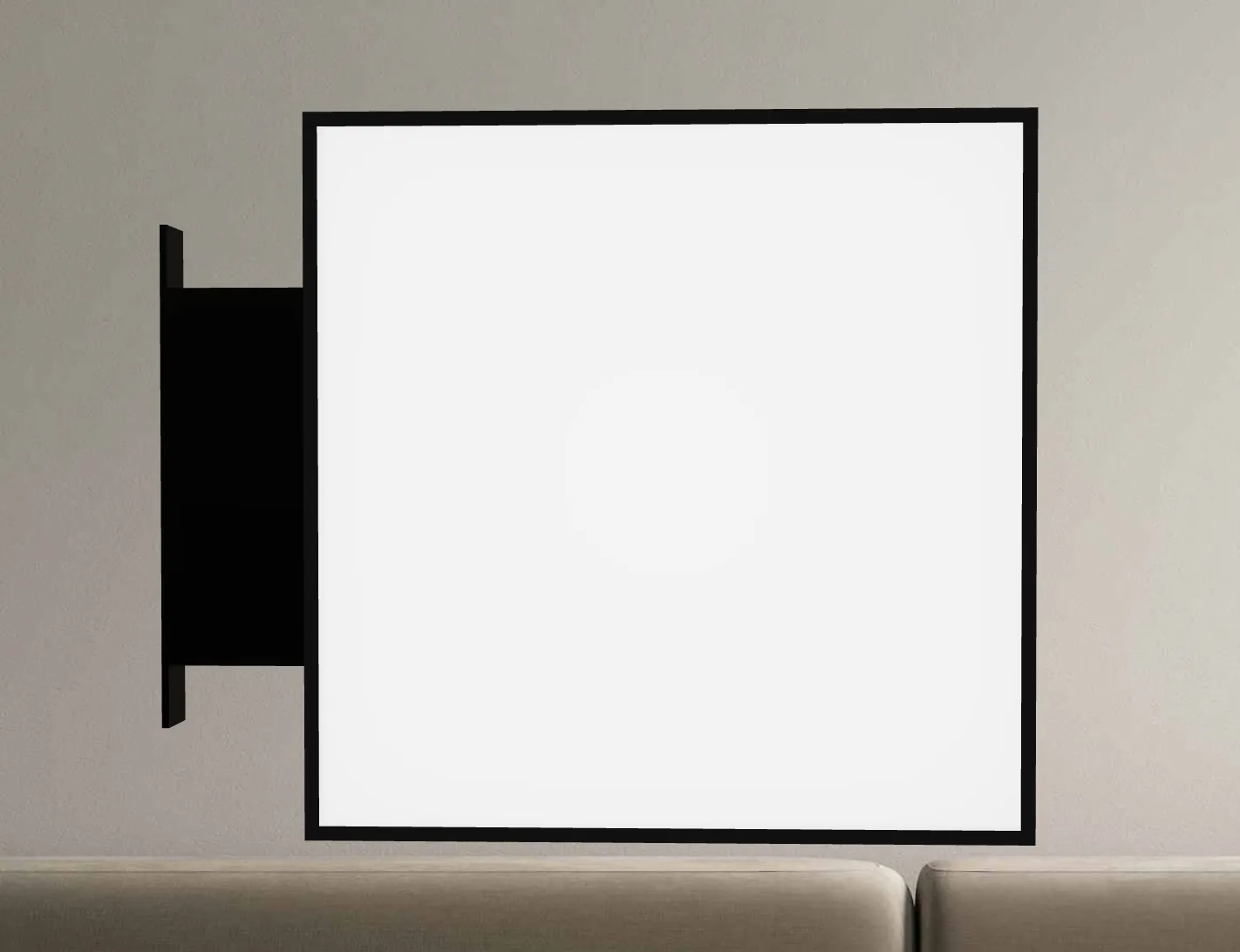
Lightbox Mounting Visualizations

We’ve added new mounting visualisation options for lightbox signs, making it easier for customers to see exactly how their finished sign will look with hardware attached. These realistic previews help reduce uncertainty and boost buyer confidence.

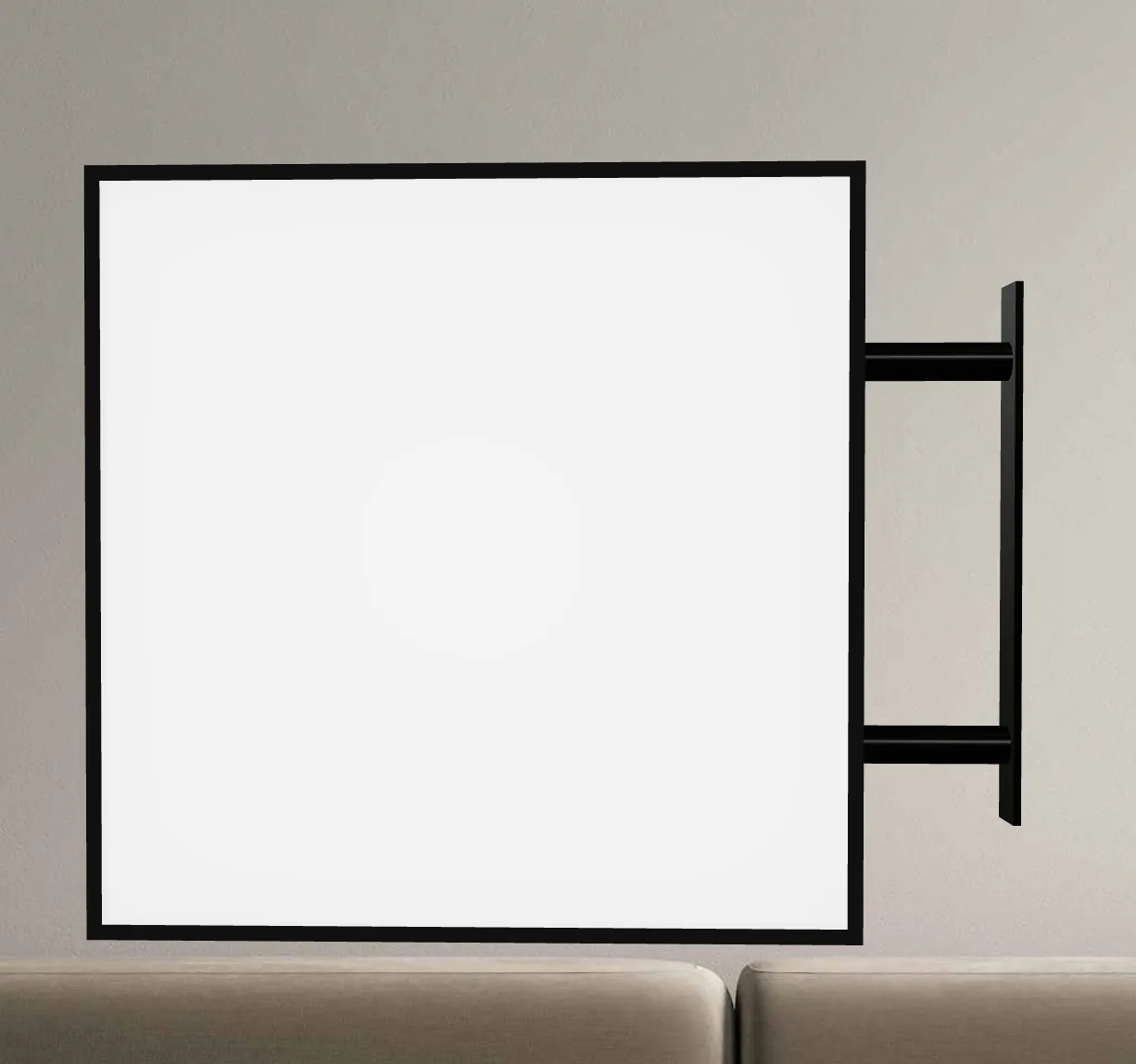
Single Column Mounting Kit

The single column mounting kit displays a sleek, vertical mounting post attached to your lightbox sign. This mounting style is ideal for wall-mounted installations where a clean, minimal aesthetic is desired.

Customers can position the column on any side of the lightbox—top, bottom, left, or right—giving them flexibility to match their installation requirements.

Single column

Two-Prong Mounting Kit

The two-prong mounting kit visualises a pair of mounting brackets that provide additional stability and a balanced look. This option is perfect for larger lightbox signs or installations where extra support is needed.

Like the single column option, the two-prong kit can be positioned on any side of the sign, allowing customers to preview the exact configuration they need for their space.

Two prong

How to Enable

Learn how to enable mounting visualisations on the lightbox


Improved Image Upload Experience

We’ve enhanced the user experience when customers upload images to be displayed on their lightbox signs.

Auto-Scroll to Lightbox

When a customer uploads an image to be shown on the lightbox, the 3D viewer now automatically scrolls into view and focuses on the side where the image was applied. This ensures customers can immediately see their uploaded image displayed on the sign without needing to manually navigate or rotate the preview.

Disable Auto-Scroll Animation

For merchants who prefer a more static experience, or for customers who find the automatic scrolling distracting, you can now disable the auto-scroll animation. This will keep the rotating animation paused on initial load.

Nov 17, 2025

2025.11

Manage multiple stores under one account

Starting today, customers using our Universal Sign Customiser application (does not apply to Shopify yet) can create multiple stores under a single account, allowing you to manage all of your WordPress, Wix, and custom e-commerce sites all in one place.

Learn how to create additional stores by checking out our documentation:

[/help/universal-app/creating-and-managing-multiple-stores-under-one-account/)

Note that each store requires its own subscription. Each additional store will receive an automatic 50% discount on its subscription price.

Nov 17, 2025

2025.11

Invite additional team members to your Sign Customiser account

You can now invite additional members into your account to help you manage your stores and customisers. Each team member will have their own login credentials and can access every store in your account.

Learn how to invite users by reading our documentation:

[/help/universal-app/how-to-invite-additional-users/)

Nov 3, 2025

2025.11

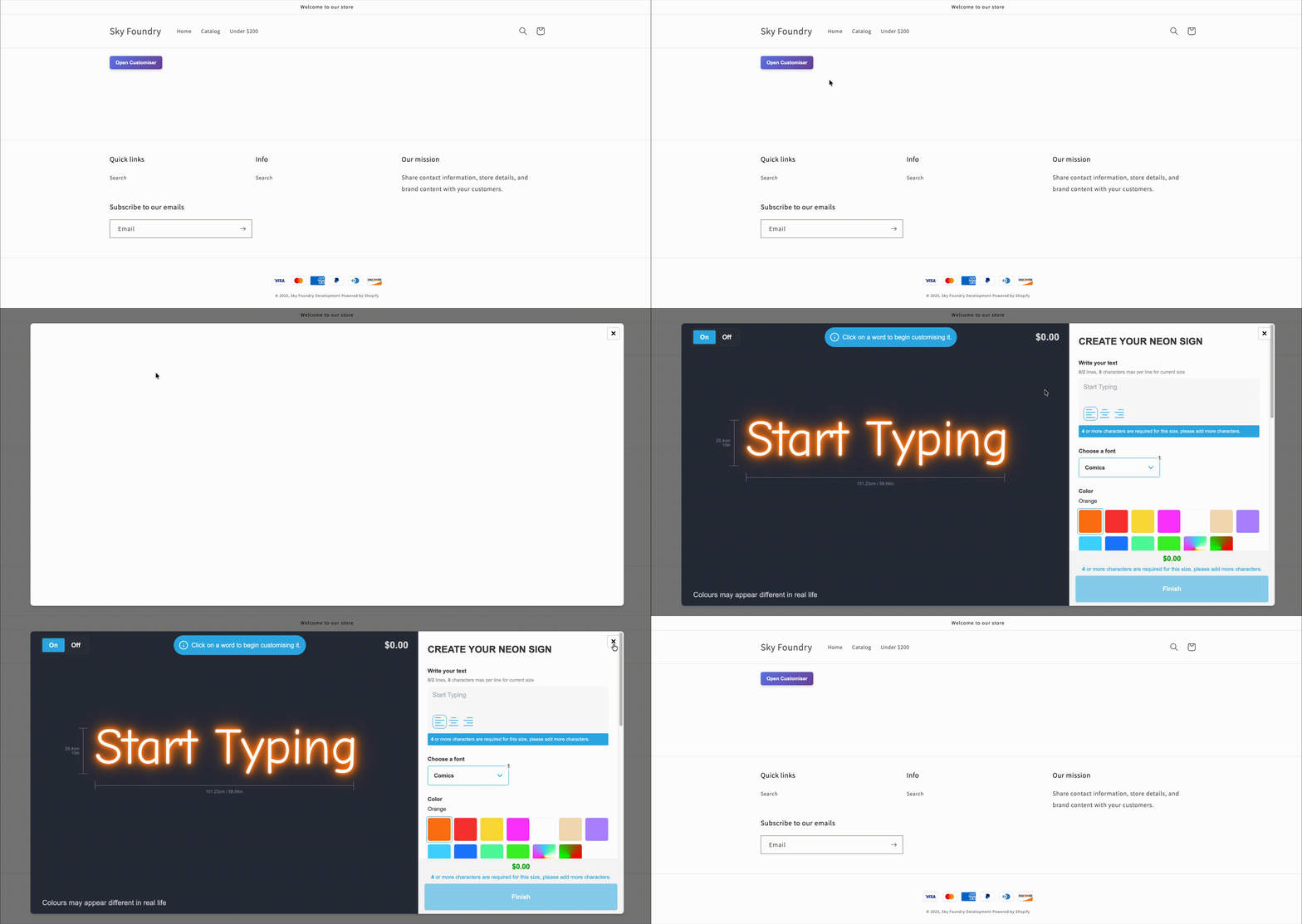
Easily display your customiser in a modal (pop-up)

Customisers can now be displayed in a modal with little to no configuration, giving you much more flexibility in how you present your products to customers.

Demonstration of customiser appearing in a modal

Why use a modal?

Embed on any page with just a button Instead of dedicating an entire page to your customiser, you can now add a simple button anywhere on your site. When clicked, the customiser opens as a modal overlay, keeping your customers on the same page they started on.

Show multiple customisers on one page Want to let customers choose between different sign types on the same page? Now you can. Add multiple buttons that each open different customisers, making it easier for customers to compare options without navigating between pages.

Better user experience The modal approach means the customiser doesn’t take up your entire screen or page layout. Customers can easily close the modal to return to where they were, creating a smoother, less disruptive experience.

Get started

Learn how to add this to your website by visiting our documentation:

[/help/customise/modal-display/)

Open original

Get started

Add Sign Customiserto your store today

Install now
36+ verified reviews

Login

Universal Sign In
  • WordPress
  • Wix
  • Etsy
  • Squarespace
  • Webflow

Or, if on Shopify, navigate to your store admin to login.